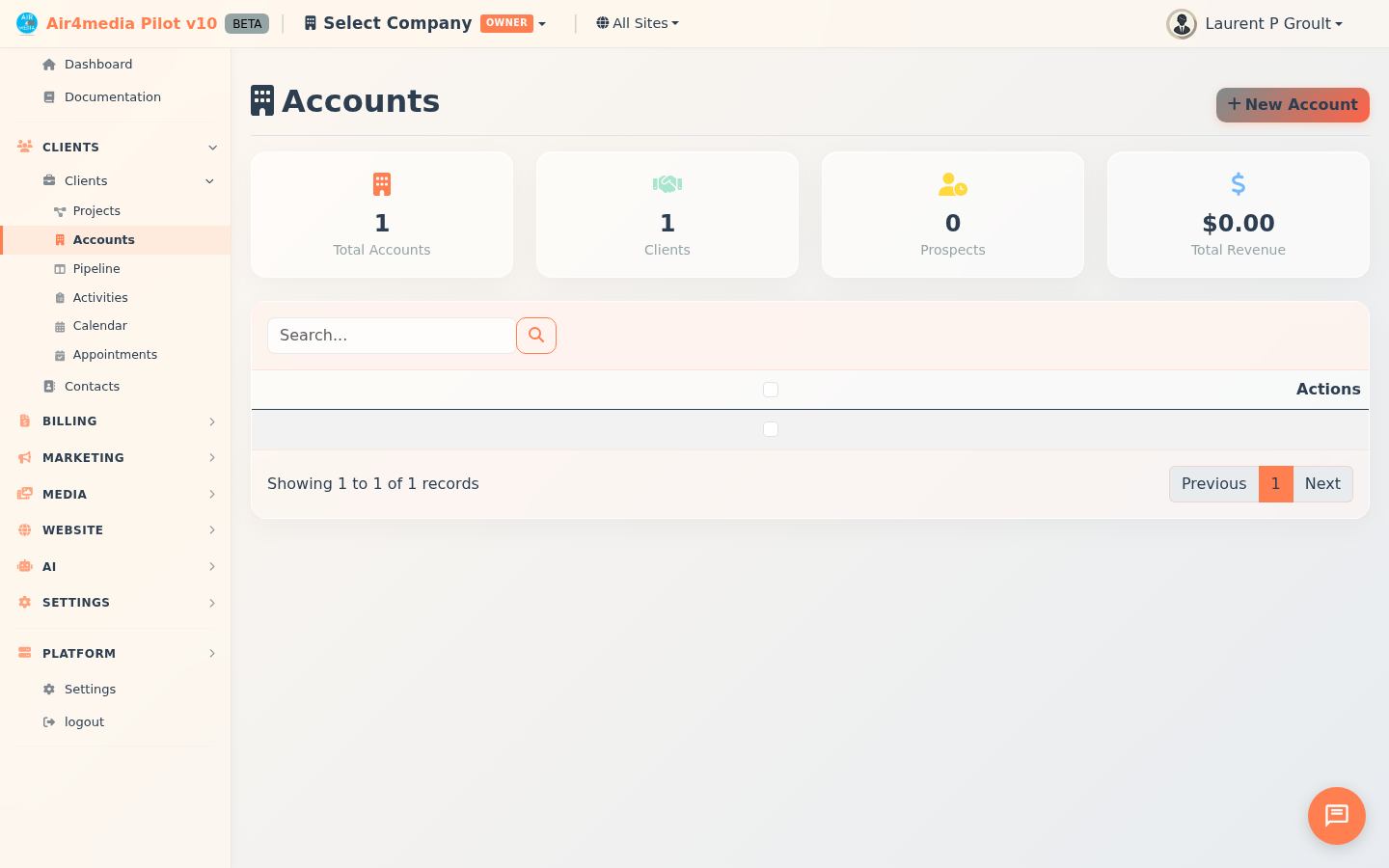
Accounts
The Accounts section lists every person who has — or has requested — access to your media portal. For ACME Creative Agency, this is your single place to see all portal users, control what each person can do, and approve or revoke access as your team and client roster changes.
Key Features
- User List: Each row shows the username, full name, company, email, access level badge, country, last active date, and account type.
- Access Level Badges: Each user is assigned one of six color-coded levels — Guest, Pending, No Download, Web Download, Full Download, or Admin — so you can see at a glance who can do what.
- Approve Pending Accounts: New self-registered users appear with a yellow Pending badge and a dedicated Approve button. One click grants them Web Download access without opening the full edit form.
- Add Accounts Manually: Use the New Account button to create a portal user directly — no registration required.
- Filter by Level: Use the Level dropdown to show only Pending users, only Full Download users, or any other level — useful when auditing who has full access.
- Search: Find any user by username, name, email, or company.
- Edit & Delete: Update any account's details or access level, or remove it entirely. Use checkboxes to delete multiple accounts at once.
How to Use
Approve a New User
- Open the Accounts tab. Users waiting for approval appear with a yellow Pending badge.
- Click Approve on their row — they are upgraded to Web Download access immediately.
- To assign a different level first, click Edit, choose the level from the dropdown, and save.
Change a User's Access Level
- Find the user in the list and click Edit.
- Change the User Level field (e.g., upgrade from Web Download to Full Download).
- Click Save. The badge on the row updates instantly.
Filter and Search
- Use the Level dropdown to narrow the list — for example, select Full Download to review everyone with full access.
- Type a name, email, or company in the search box to find a specific user.
Remove an Account
- Click Delete on any row and confirm to remove that user.
- To remove multiple accounts, check the boxes and choose Delete Selected from the batch actions bar.
Tips
- Check Pending accounts regularly so new users are not left waiting for access.
- Use the Level filter to audit access before sharing a new asset batch — confirm only the right people have Full Download.
- If a client should only view assets without downloading, set them to No Download rather than deleting their account — they keep their login but lose download access.
- The Last Active date on each row helps identify accounts that may no longer be in use — clean these up to keep your portal tidy.