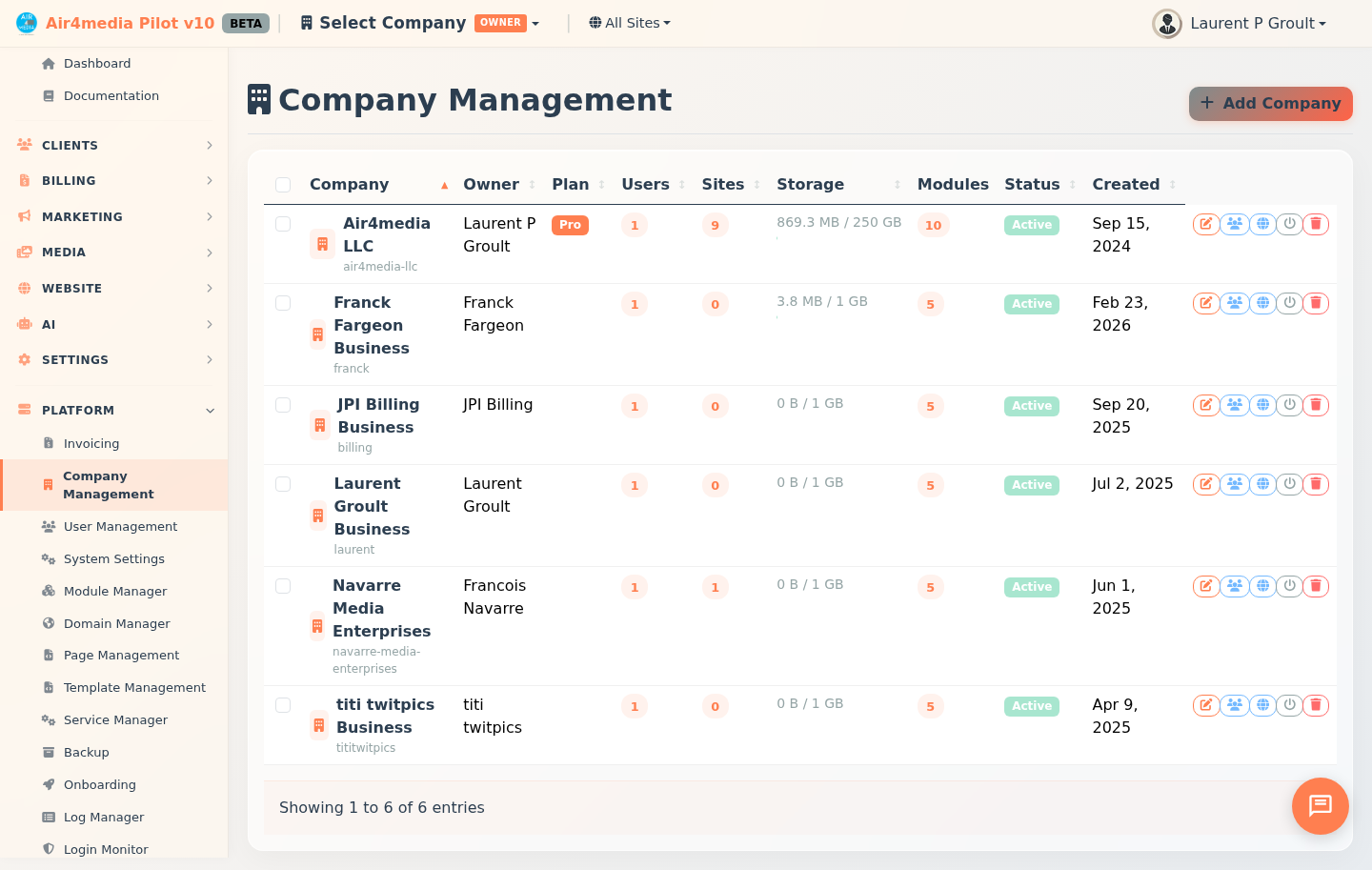
Company Management
A platform-level tool for creating and managing client companies, their members, subscription plans, and enabled modules. Everything about a company like ACME Creative Agency — its team, plan, active modules, and AI credits — is managed from this single page.
Key Features
- Company List: Sortable columns for name, owner, plan, user count, site count, storage, modules, beta status, and creation date. Search by name or email; filter by status, plan, or beta status.
- Add & Edit Companies: Three-tab modal — Details (name, logo, owner, contact info), Plan & Options (subscription plan, Beta, Startup Package, AI Credits), and Modules (CRM, DAM, Airmail, Airblog, Airforms).
- Logo: Upload or pick from existing assets (JPG, PNG, GIF, SVG, or WebP — up to 5 MB). A preview appears instantly; click Remove to clear it.
- Plan & Options Tab: Shows Beta Tester, Startup Package, and AI Credits in a table — each with its current status, activation date, and expiry date. Toggle each add-on with a single click.
- Beta & Startup Package: Toggle per company from the Plan & Options tab. Beta companies get plan features for free and display their AI credit balance in the list.
- Grant Credits: Add AI credits to any company from its list row or the Plan & Options tab.
- Member Management: Add existing users, invite by email (7-day link), change roles, and remove members — all from the Members panel.
- Auto-Join: Invited users are added automatically when they log in or sign up with their invited email — no link click required.
- Sites View: See all sites linked to a company and their current status.
- Bulk Actions: Select multiple companies to activate or suspend at once.
How to Use
Add a Company
- Click Add Company in the top right.
- Fill in the name, email, phone, and website. Upload or choose a logo. Set status and assign an owner.
- Go to Plan & Options and select a subscription plan.
- Go to Modules and enable the modules this company needs.
- Click Save. A default site is created automatically.
Edit a Company
Click Edit on a row, update fields across any tab, and click Save.
Toggle Beta or Startup Package
Open Edit → Plan & Options. The options table shows current status, activation date, and expiry for each add-on. Click the toggle to enable or disable it. Platform admins only.
Grant Credits
Click Grant Credits on a row (or the + button in Plan & Options). Enter the number of AI credits to add and confirm.
Manage Members
Click Members on any company row.
- Add existing user: Search by name or email, choose a role, and click Add.
- Invite by email: Enter an email address, choose a role (Admin, Editor, or User), and click Invite.
- Change role: Use the dropdown next to a member's name.
- Remove: Click × on their row.
- Pending invitations: Appear below the member list. Click Resend for a fresh 7-day link, or Cancel to revoke.
Change Company Status
Click Toggle Status on a row to switch between Active and Suspended. For bulk updates, use the checkboxes and Activate Selected or Suspend Selected.
Delete a Company
Click Delete on a row. This permanently removes the company and all its stored files and cannot be undone.
Member Roles
| Role | Description |
|---|---|
| Owner | Full control; cannot be removed |
| Admin | Can manage members and invitations |
| Editor | Can create and edit content |
| User | Standard access |
Tips
- Storage bar turns orange above 75% and red above 90%.
- The company owner is automatically added as a member on creation.
- Invitations expire after 7 days — use Resend to issue a fresh link.
- Owner role can only be set by adding an existing user via the search field. It cannot be assigned via email invitation.
- Auto-join means invited users don't need to click their link — logging in with the invited email is enough.
- Toggle Status only switches between Active and Suspended. Use Edit to set Trial or Cancelled.
- The primary company (Air4.media LLC) cannot be deleted.
- Beta status, Startup Package, and Grant Credits are restricted to platform-level admins.