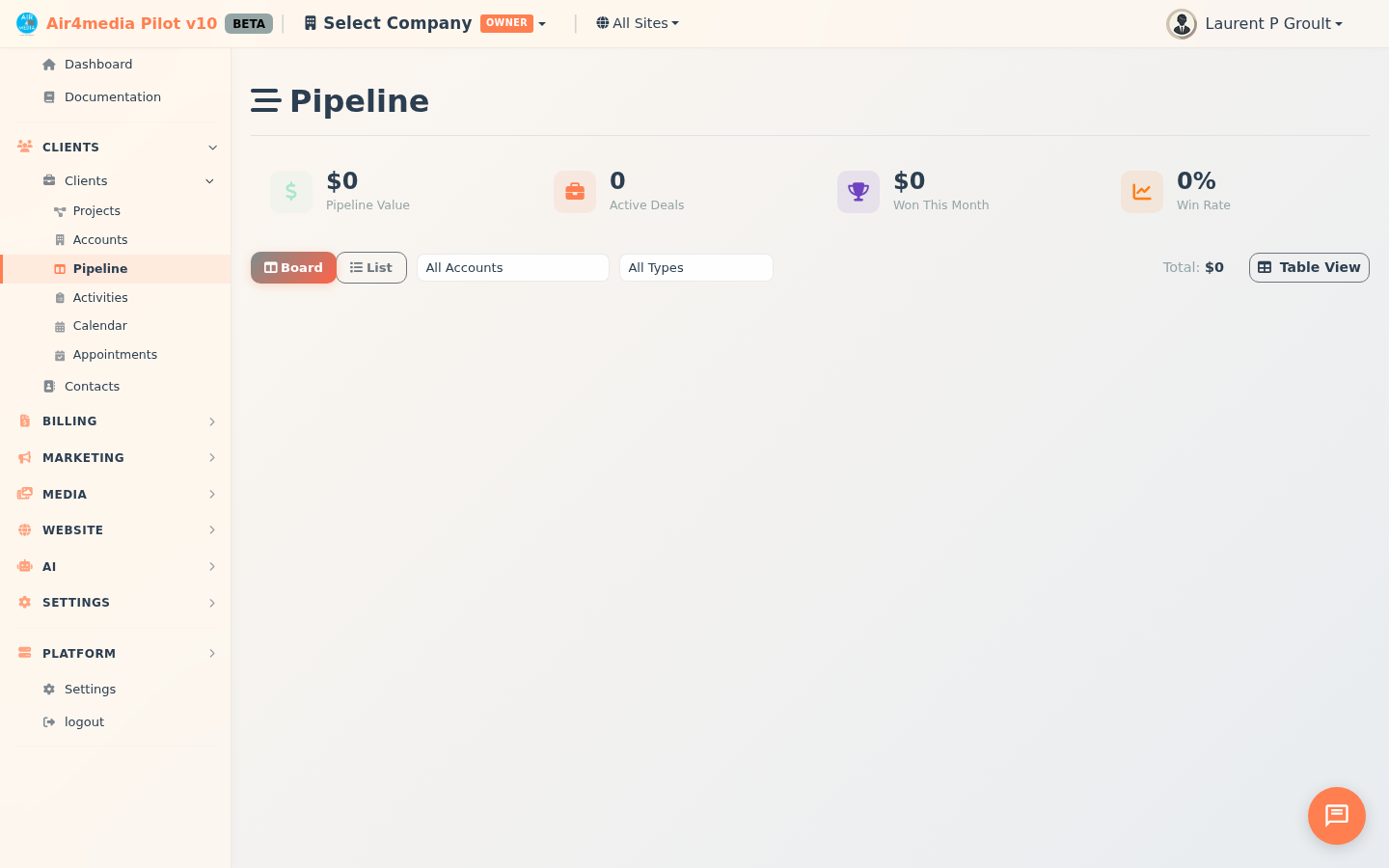
Pipeline
The Pipeline page gives ACME Creative Agency a visual overview of every open opportunity — from first inquiry through to won deal — organized as a Kanban board with stages you control.
Key Features
- Kanban Board: Leads organized in columns by stage, each showing lead count and total value
- Drag & Drop: Move a lead to a new stage by dragging its card — saves automatically
- List View: Switch to a compact table showing name, contact, source, value, age, event date, and temperature
- Summary Stats: Four cards show Pipeline Value, Active Leads, Won This Month, and Win Rate (last 90 days). Click a card to focus the board on that segment; click again to clear
- Toolbar Total: A running total reflects the estimated value of all currently visible leads
- Quick Add Lead: Click New Lead — first name is required, everything else is optional. Lead name is auto-generated if left blank
- Company Detection: Enter an email and the system automatically checks if the domain matches an existing account and offers to link the lead
- Temperature & Age: Each card shows a colored dot (hot, warm, cold) and a color-coded age badge — green for new leads, red for 30+ days
- Lead Editor: Click any card to open a detail panel. Edit name, contact info, event date, notes, stage, value, temperature, and source, then click Save
- Mark Won / Mark Lost: Trophy and X buttons appear on cards and in the editor. Marking Won automatically upgrades the linked account from prospect to client
- Log Contact: Record a call, email, meeting, SMS, or follow-up with optional notes — a badge tracks the total count per lead
- Convert to Project: Click New Project in the editor (or respond to the automatic prompt) to choose a project type — Event, Production, Rental, Service, and more — and create it immediately
- Project Detail (Inline): Once a project is linked, a badge appears on the card. Click it — or Open Project in the editor — to open a full multi-tab view: Events, Quotes, Contracts, Invoices, Resources, Budget, People, and Activity. Manage the entire engagement without leaving the pipeline
- Filters & Search: Narrow by source or temperature; search by lead or account name
- Custom Stages: Click the gear icon to add, rename, reorder, and color-code stages. Set one as Default (where new leads land), one as Won, and optionally flag stages to auto-trigger project creation
How to Use
- Open Pipeline from the sidebar to see your board
- Check the four summary cards for a quick health snapshot — click one to focus on that segment
- Click New Lead to add an opportunity; enter an email to auto-detect the linked account
- Drag a card to move it through stages, or open the editor and pick a new stage from the dropdown
- Click any card to edit details, log a contact attempt, or mark it won or lost
- When a lead is ready, click New Project to convert it — choose a project type and create it immediately
- Use the project badge on the card or Open Project in the editor to manage quotes, invoices, and contracts right here
- Click the gear icon to manage stages — add new ones, set colors, and configure auto-project triggers
Tips
- Pipeline Value only counts active leads, so it always reflects real open opportunities
- Win Rate covers the last 90 days — the most actionable window for spotting trends
- Age badges turn red at 30+ days — a quick signal for leads that need follow-up
- Set a Default stage so every new lead lands in the right column automatically
- Stages with active leads must have those leads reassigned before the stage can be deleted
- The full quote → contract → invoice workflow lives inside the project detail — win the lead, then run the engagement without switching pages