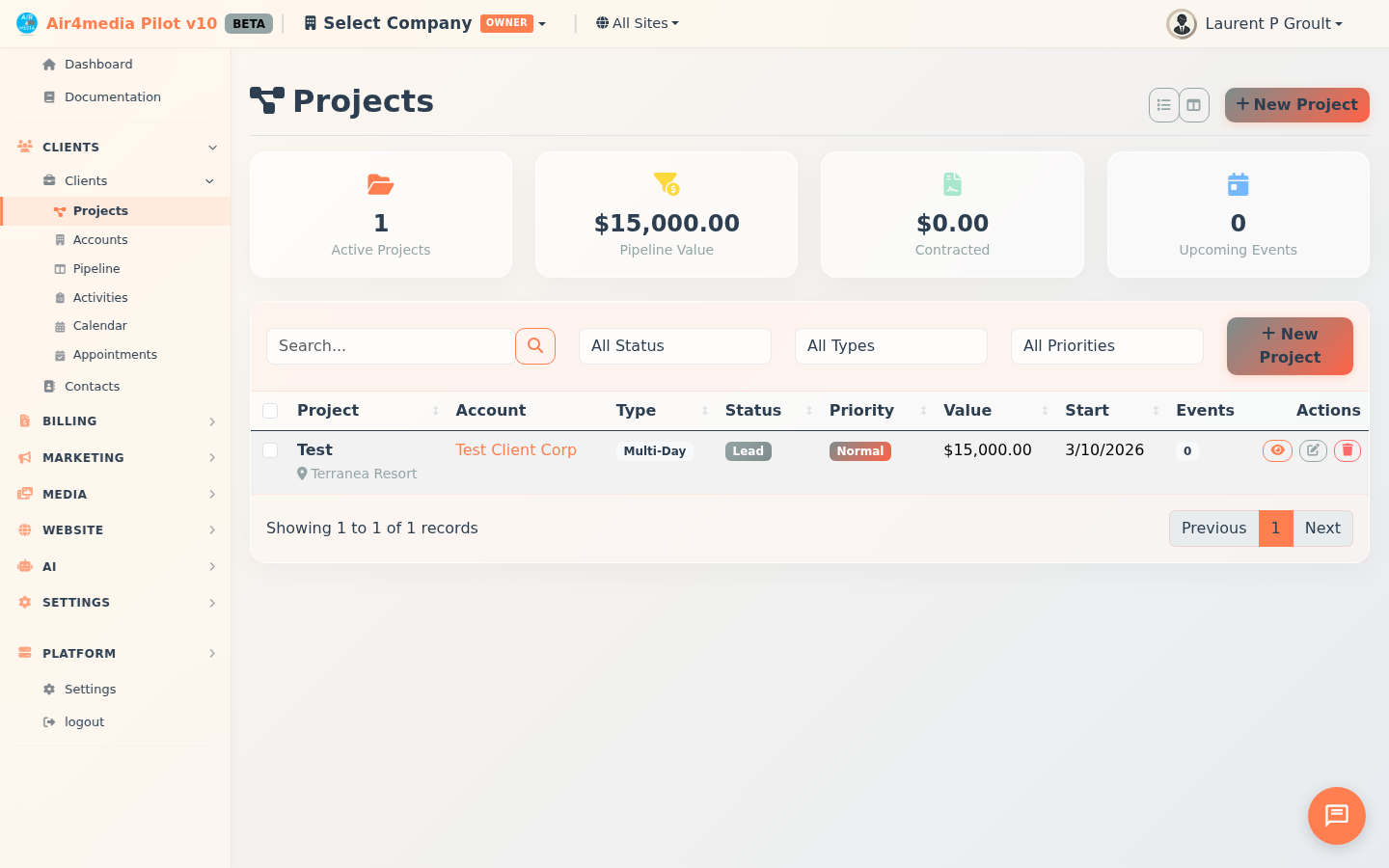
Projects
Track every project from first proposal to final payment. ACME Creative Agency's full pipeline — quotes, contracts, invoices, expenses, files, and team assignments — all in one place.
Key Features
- Two Views: Card grid (with payment progress bars and next-event highlights) or sortable list table with payment totals and event counts
- Quick Filters: Scope tabs (In Production, All Active, Proposals, On Hold, Past, All) plus stat cards (In Progress, This Month, Next 30 Days, Upcoming Events) for instant filtering
- Project Types & Statuses: Seven types (Single Event, Multi-Day, Production, Rental, Service, Retainer, Custom) moving through Proposed → Contracted → Planning → In Production → Completed
- Priority Levels: Low, Normal, High, or Urgent — color-coded throughout
- Events: Multiple dated events per project, each with type (Corporate, Wedding, Meeting, Setup, Breakdown, etc.), times, venue, and status
- Quotes: Line items, validity dates — convert accepted quotes to contracts or invoices; save reusable templates; send with a scheduled delivery option
- Contracts: Full document editor with dynamic placeholders (names, dates, amounts); send for client signature; counter-sign in-platform; amend signed contracts with automatic re-signature tracking
- Invoices: Multiple payment methods (Stripe, PayPal, check, cash, Venmo, Zelle, and more), recurring billing with pause/resume, public payment links
- Budget: Log Direct Expenses, Vendor Bills, or Resource Costs across categories (Equipment, Labor, Venue, Travel, Subcontractor, etc.); set annual revenue and expense targets; mark expenses as Billable
- Files: Upload project documents by category (Contract, Permit, Photo, Invoice, Proposal) and control which files are visible to clients via the portal
- People: Assign contacts and team members with roles; set per-stakeholder permissions for receiving quotes, contracts, and invoices
- Activity: Complete history of emails sent from Pilot — quotes, invoices, contracts — with direction, recipient, and timestamp
How to Use
- Click New Project, fill in name, account, type, status, and priority on the General tab — add dates and venue on the Dates & Venue tab — then Save Project
- Click a project card (or the eye icon in list view) to open the project workspace
- Work through the tabs inside the workspace:
- Events — schedule dates with type, times, and venue
- Quotes — create, send, and track quotes; convert accepted quotes to contracts or invoices
- Contracts — write contracts with dynamic placeholders, send for signing, counter-sign in-platform
- Invoices — create invoices, record payments, set up recurring billing, share payment links
- Budget — log and categorize expenses; set annual revenue and expense targets; sync resource costs from the People tab
- Files — upload and organize project documents; toggle client portal visibility per file
- People — manage contacts and stakeholders with roles and notification permissions
- Activity — review all emails sent from this project
- Switch to List View (toolbar icon) for a sortable table showing payment totals and event counts
Tips
- Use scope tabs to jump instantly to In Production, Proposals, On Hold, or Past projects
- The project sidebar always shows estimated value, contracted value, total payments, expenses, and live profit/loss
- Recommended billing flow: Quote → Contract (signed) → Invoice
- Mark expenses as Billable to flag costs that should be passed on to the client
- Use Schedule Send to defer quote, contract, or invoice emails to a future date and time
- Recurring invoices can be paused and resumed — useful for seasonal retainer clients
- Save quotes and contracts as Templates to speed up future projects
- Click the expand icon in the project header to open the workspace in fullscreen mode
- Filter by Urgent priority to surface the projects that need immediate attention