Startup Wizard
The Startup Wizard guides you through collecting everything needed to generate a professional investor deck. Complete 8 focused steps at your own pace — your answers save automatically as you go.
Key Features
- 8-Step Guided Flow: Covers every section investors want to see — from company basics to your funding ask
- Free Navigation: Jump to any step at any time using the progress bar — no need to go in order
- Auto-Save: Your work saves automatically a few seconds after you stop typing, and whenever you move between steps
- Auto-Pull from CRM: On the Traction, Revenue, and Team steps, click Auto-Pull to instantly populate fields from your live Pilot data — for ACME Creative Agency, this pulls in active clients, pipeline totals, and your team roster in one click
- 5 Deck Templates: Choose a template in the settings sidebar — each produces a different layout and slide count
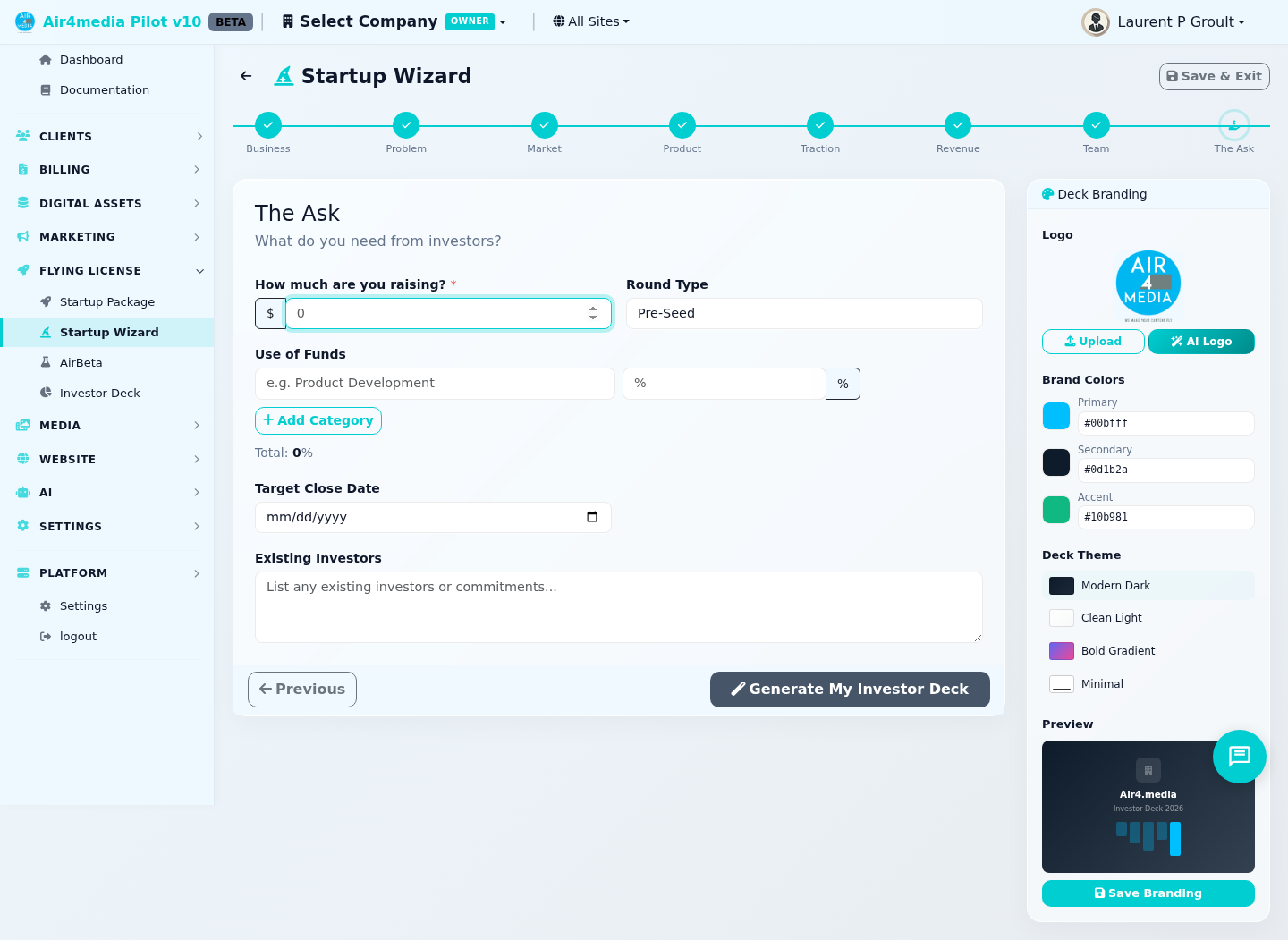
- Deck Settings Sidebar: Set your logo, brand colors (Primary, Secondary, Accent), and color theme — a live preview card updates in real time
- Logo Picker: Upload an image, browse your company's Digital Assets library, or generate AI logo variations in Horizontal, Stacked, or Lettermark layouts
- Multiple Decks: Create separate decks for different audiences — each has its own data profile and a unique investor share link
The 8 Steps
- Company Basics — Name, tagline, logo, industry, stage, founded date, and website
- Problem & Solution — The problem you solve, your solution, and your unique value proposition
- Market — Target customer and market size (TAM, SAM, SOM)
- Product — Description, up to 6 key features, demo URL, and product stage
- Traction & Growth — Current clients, pipeline, MRR, ARR, and growth rate
- Business Model — Revenue type, LTV, CAC, current revenue, burn rate, and runway
- Team — Founder bio and LinkedIn, team members, and advisors
- The Ask — Deck name, raise amount, round type, use of funds, close date, and existing investors
How to Use
- Open the Startup Wizard from the Startup page
- Fill in each step — required fields are marked with a red asterisk
- On Steps 5, 6, and 7, click Auto-Pull to import data directly from your Pilot account
- Open the Deck Settings sidebar to choose a template, set your logo, brand colors, and color theme
- Use the progress bar at the top to jump between any step at any time
- Click Save & Exit to return to the Startup page without losing progress
- When ready, go to Step 8, give your deck a name, and click Generate My Investor Deck
Deck Templates
Choose a template before generating — each controls layout and slide structure:
- Classic (12 slides) — Balanced text, metrics, and charts. The standard YC/Sequoia format.
- Pitch Perfect (10 slides) — Bold headlines, one powerful point per slide.
- Data-Driven (14 slides) — Heavy on charts and tables. Best for startups with strong metrics.
- Storyteller (14 slides) — Narrative-driven with emotional arc. Tells your startup story.
- Startup Sprint (12 slides) — Modern SaaS aesthetic with feature cards and icon grids.
Tips
- Required to generate: Company name (Step 1), Problem and Solution (Step 2), and Founder name (Step 7)
- Logo options: Upload a file (PNG, JPG, SVG, WebP up to 5MB), browse your Digital Assets library, or generate AI variations — pick Horizontal, Stacked, or Lettermark layout and refine with feedback
- Color Themes: Choose from Modern Dark, Clean Light, Bold Gradient, Minimal, Corporate Navy, or Warm Sunset
- Use of Funds: The tracker on Step 8 turns green when your allocations add up to exactly 100%
- Investor sharing: Each generated deck gets a unique share link — send it directly to investors with no login required
- Multiple decks: Create or duplicate decks from the Startup Package page — each runs its own independent wizard profile