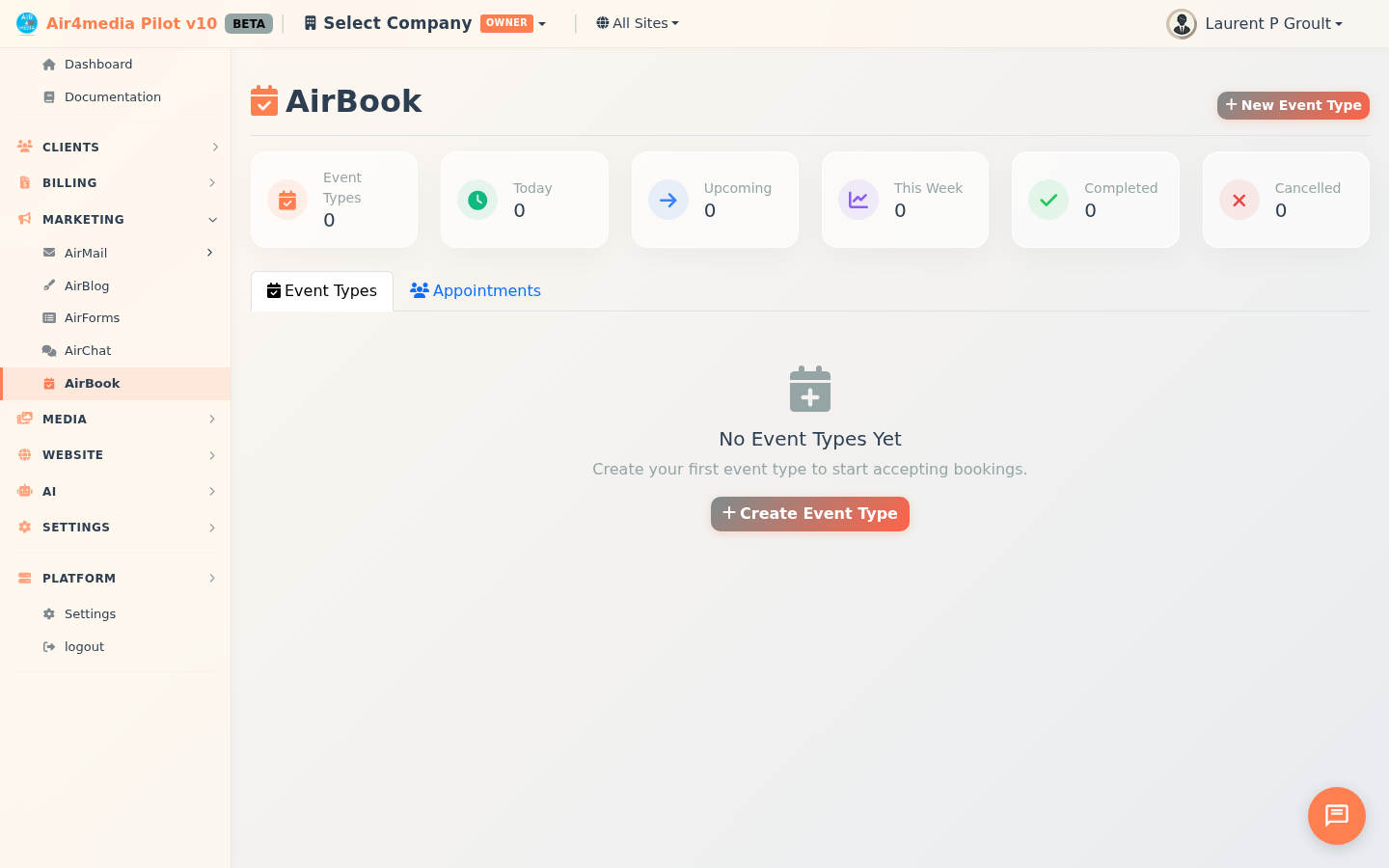
AirBook
AirBook lets you create shareable booking pages so clients can schedule appointments with you — no back-and-forth emails required.
Key Features
- Event Types: Create multiple booking types (consultations, demos, check-ins) each with their own duration, location, color, and availability rules
- Shareable Booking Links: Each event type gets a unique public link you can share with clients or embed on your website — no account needed to book
- Flexible Availability: Set which days and hours you accept bookings per event type, with multiple time slots per day. New event types default to Monday–Friday, 9am–5pm
- Buffer Times: Add automatic buffer before and/or after appointments so you're never double-booked or rushed
- Booking Controls: Set how far in advance clients can book, minimum notice required (default 24 hours), and a daily cap
- Approval Mode: Optionally require your approval before a booking is confirmed
- Confirmation Message: Add a custom message shown to clients after they book
- Appointment Dashboard: View all upcoming appointments with client name, email, phone, and any notes they left
- Stats Overview: At-a-glance counts for active event types, today's bookings, upcoming, this week, completed, and cancelled
How to Use
Create an Event Type
- Go to AirBook in the sidebar
- Click New Event Type
- On the Details tab: enter a name, description, duration (15 min to 2 hours), location type, and pick a color
- On the Availability tab: adjust the days and times — click Add Time Slot to add multiple windows per day
- On the Settings tab: set buffer times, booking window, minimum notice, daily cap, and whether approval is required
- Click Create
Share Your Booking Link
- On the Event Types tab, click the ⋮ menu on any event card
- Select Booking Link
- Copy the URL and send it to clients — anyone with the link can book directly
Manage Appointments
- Click the Appointments tab to see upcoming bookings
- Click the eye icon on any row to view full details: client name, email, phone, date, time, and notes
- For pending appointments, choose Confirm or Decline
- For confirmed appointments, choose Complete or Cancel
Manage Event Types
From the ⋮ menu on any event type card:
- Edit — update any settings at any time
- Booking Link — copy the shareable booking URL
- Duplicate — copy an event type with all its settings intact
- Deactivate / Activate — pause bookings without deleting the event type
- Delete — permanently removes the event type and all its associated bookings
Tips
- Set a minimum notice of at least a few hours to avoid last-minute surprises (24 hours is the default)
- Use different colors to tell event types apart at a glance
- Buffer time after appointments gives you breathing room before the next call
- The booking window controls how far ahead clients can schedule — 60 days is the default
- Deactivate an event type instead of deleting it if you want to reuse it later