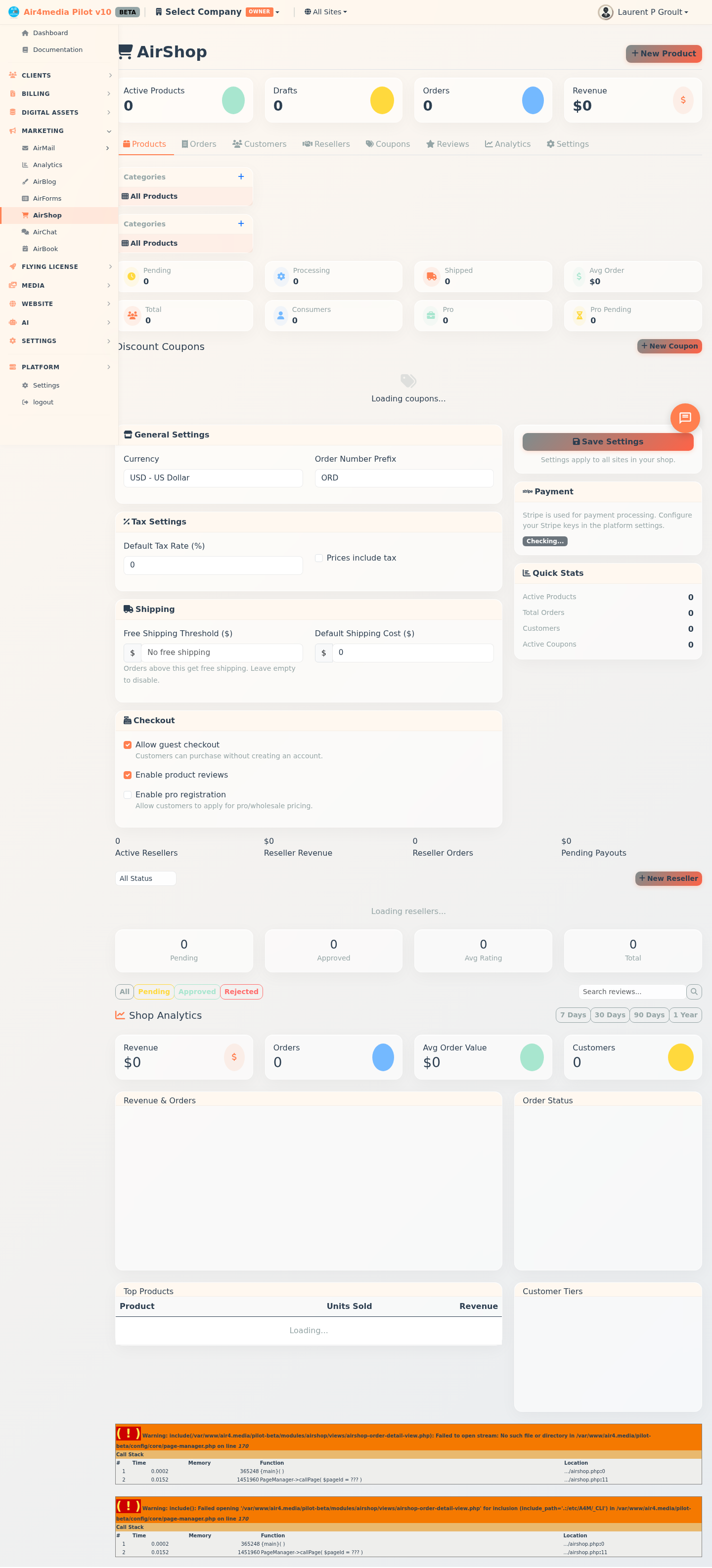
AirShop
AirShop is your complete e-commerce store manager. Sell products with tiered pricing, manage orders from purchase to delivery, run a reseller program, and track performance — all from one place.
Key Features
- Dashboard Stats: Active products, drafts, total orders, and revenue at a glance
- Tiered Pricing: Set Retail, Pro, and Cost prices per product — plus a Compare At price for highlighting discounts
- Product Variants: Offer size, color, material, or any custom option with individual prices and stock
- Order Lifecycle: Move orders from Pending through Confirmed, Processing, Shipped, and Delivered with automatic shipping notifications
- Customer Tiers: Segment buyers as Consumer, Pro, or VIP with an optional Pro approval workflow
- Coupon Engine: Create percentage, fixed-amount, or free-shipping discounts with usage limits, expiry dates, and customer-tier restrictions
- Reseller Storefronts: Give approved resellers a branded storefront with custom commission rules and pricing strategies
- Reviews: Collect and moderate star-rated product reviews before they go live
- Analytics: Track revenue trends, top products, order status breakdown, and customer tier distribution
How to Use
Products
- Go to the Products tab and click New Product
- Enter the name, SKU, type (Physical, Digital, Service, or Bundle), and description
- Set your Retail Price — add Pro, Cost, and Compare At prices as needed
- Enable Track Inventory to manage stock and set a low-stock alert
- Add photos, videos, or documents under the Media tab
- Use Variants for products with multiple options (e.g., "Size: 8x10" or "Material: Vinyl")
- Use the right sidebar to assign categories, configure reseller access, add shipping dimensions, and write SEO text
- Click Save Draft to save without publishing, or Publish to make it live
Orders
- Open the Orders tab — stats at the top show Pending, Processing, and Shipped counts
- Click an order to see items, totals, shipping, billing, and payment details
- Update the status (Confirmed → Processing → Shipped → Delivered) as you fulfill it
- Click Add Tracking to enter a tracking number and carrier — a shipping email goes out automatically
- Use the Notes section to leave internal comments on an order
Customers
- Open the Customers tab to browse all buyers
- Click a customer to view their order history, total spent, and contact details
- Set their Tier (Consumer, Pro, or VIP) and manage Pro approval status if required
- Add internal notes to record preferences or special agreements
Coupons
- Go to the Coupons tab and click New Coupon
- Enter a code or click Generate for a random one
- Choose: Percentage, Fixed Amount, or Free Shipping
- Set optional rules: minimum order, usage limit, per-customer limit, eligible products or categories, and customer tier
- Schedule with start/end dates, then toggle active or inactive at any time
Resellers
- Open the Resellers tab and click New Reseller
- Select an approved Pro customer and enter their business name
- Set commission type (Markup %, Percentage, or Fixed Amount) and payout method
- Configure storefront branding colors and which products they can sell
- Set per-product minimum prices to protect your margins
Reviews
- Open the Reviews tab and filter by Pending, Approved, or Rejected
- Click a review to read its full content and star rating
- Click Approve to publish it on the product page, or Reject to hide it
Analytics
- Open the Analytics tab and pick a period: 7 days, 30 days, 90 days, or 1 year
- Review revenue, order count, average order value, and unique customers — with trend indicators
- See top-selling products, order status breakdown, and customer tier distribution
Settings
- Open the Settings tab to configure currency, order number prefix, tax rate, and shipping defaults
- Toggle guest checkout, product reviews, and Pro registration on or off
- Click Save Settings to apply changes store-wide
Tips
- Use Duplicate on a product to quickly spin up similar listings
- The Compare At Price shows a strikethrough "was" price on your storefront — great for highlighting sales
- Keep Cost Price updated to track real profit margins per product
- Seasonal coupons with scheduled start/end dates can be set up well in advance
- A Minimum Reseller Price protects your margins while giving resellers pricing flexibility