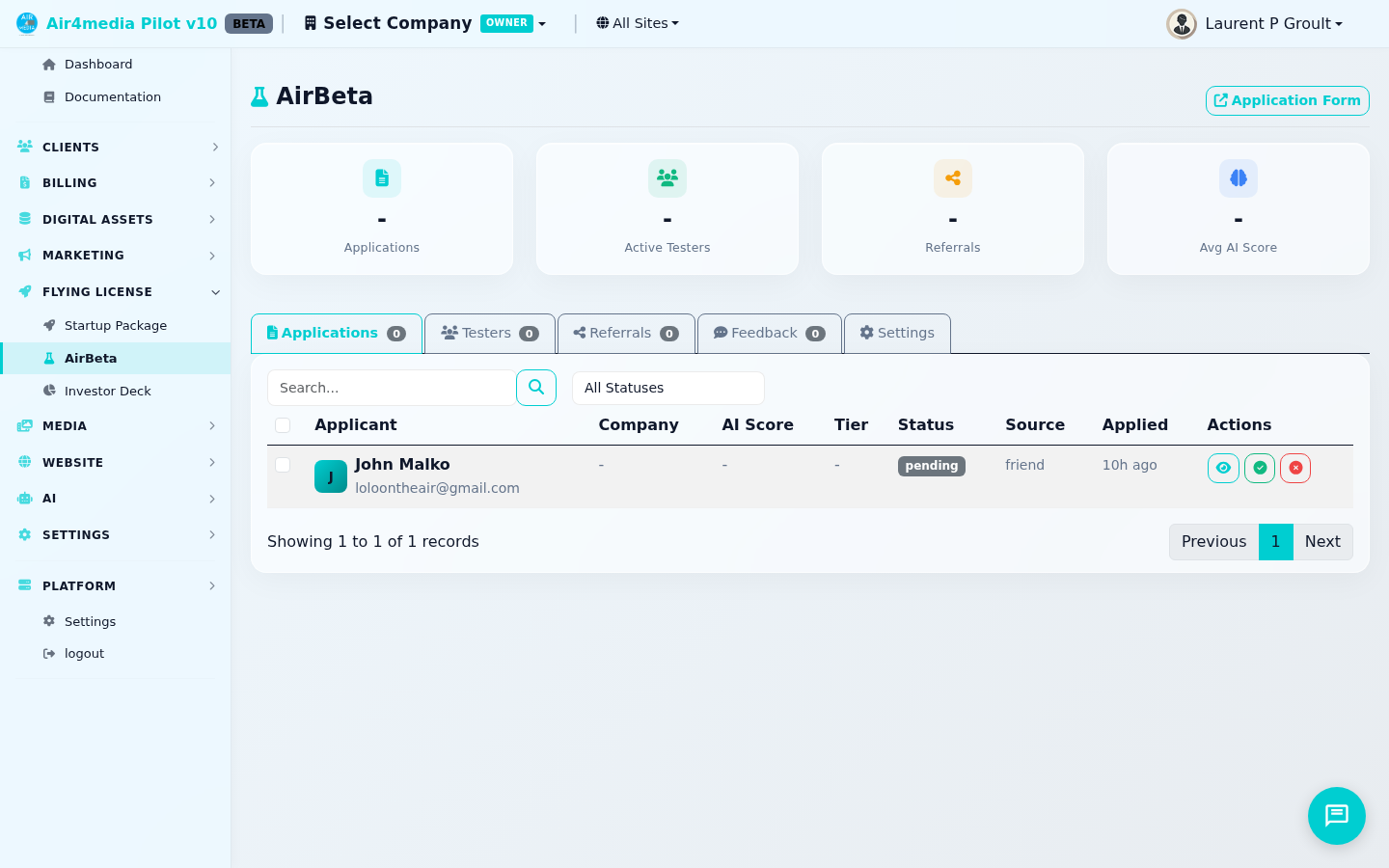
AirBeta
AirBeta is your beta program control center — manage applications, testers, referrals, feedback, and automated emails all in one place.
Key Features
- Dashboard Stats: Live counts of total applications, active testers, referrals, and average AI score at a glance
- AI-Powered Scoring: Every application is automatically scored on Fit (35%), Urgency (25%), Value (30%), and Referral bonus (10%) — totaling 0–100 with a tier recommendation
- Follow-Up Questions: Borderline applications (score 40–79) receive AI-generated follow-up questions to gather more context before a final decision
- Application Pipeline: Review, approve, reject, or waitlist applicants individually or in bulk
- Tester Management: View all active beta testers, their tiers, referral codes, feedback counts, and last-active status
- Referral Leaderboard: Track which testers are referring the most people, see conversion rates, and promote top referrers to higher tiers
- Feedback Tracker: Collect and triage bugs, ideas, improvements, and questions — with a top-reporters leaderboard
- Email & Settings: Customize automated email templates, preview them, send test emails, and manage referral rules
How to Use
Reviewing Applications
- Click the Applications tab to see all incoming applications with AI scores and status badges
- Click any row to open the full detail — including the score breakdown (Fit, Urgency, Value), AI rationale, and any follow-up answers
- Select a tier (Explorer, Builder, or Pioneer) and optionally add review notes
- Click Approve, Reject, or Waitlist — the applicant receives an automatic email
- To act on many at once, check multiple rows and use the Approve Selected or Reject Selected batch buttons
AI Score Guide: 80–100 → Pioneer · 60–79 → Builder · 40–59 → Explorer · 20–39 → Waitlist · Below 20 → Reject
Managing Testers
- Click the Testers tab to see all approved testers
- Filter by tier (Explorer, Builder, Pioneer) or status (Active, Inactive) using the filter bar
- Click a tester to view their profile, referral code, referral history, and feedback count
- Click the toggle icon on any row to activate or deactivate a tester instantly
- Select multiple testers and click Deactivate Selected to remove access in bulk
Referrals
- Click the Referrals tab to see overall stats (total referrals, conversions, conversion rate, participation rate) and the leaderboard
- Each approved tester has a unique referral code — top referrers are ranked automatically
- Testers who refer enough people earn tier upgrades:
- 3 referrals → tier upgrade
- 5 referrals → early access (direct to Pioneer)
- 10 referrals → lifetime beta
- Click the chain icon on any leaderboard row to see every person that tester referred
- Click the upgrade arrow to check eligibility and apply a tier promotion manually
Feedback
- Click the Feedback tab to see all tester submissions and the top-reporters leaderboard
- Filter by type (Bug, Idea, Improvement, Question, Other), priority, or status
- Click any item to read the full description, then update its Priority (Low → Critical) and Status
- Status progression: Submitted → Reviewed → Planned → In Progress → Implemented → Shipped (or Won't Fix)
- Select multiple items and click Delete Selected to remove resolved or irrelevant entries
Settings & Emails
- Click the Settings tab to configure available spots, the application form headline, and referral rules
- Select any lifecycle event (Application Received, Follow-Up Ready, Approved, Rejected, Waitlisted, Referral Success, Tier Upgraded, Inactive Reminder, Feedback Acknowledged) to edit its subject and body
- Click Preview to see the rendered email, or Send Test to deliver a sample to your inbox
- Use Send Inactive Reminders to re-engage testers who haven't been active in a set number of days
Tips
- The Application Form link (top right) opens the public apply page — share it with candidates to start filling your pipeline
- Approving an application automatically creates the tester record, issues a referral code, and sends a welcome email
- Borderline applicants (score 40–79) may receive follow-up questions — their answers feed into a re-evaluation before a final recommendation appears
- The master referral code (shown in the Referrals tab) gives applicants a bonus AI score boost at evaluation time
- Testers inactive for 7+ days can receive a win-back email via the Send Inactive Reminders button in Settings